Print-ready files · From order to production
A great designer. A back office to match.
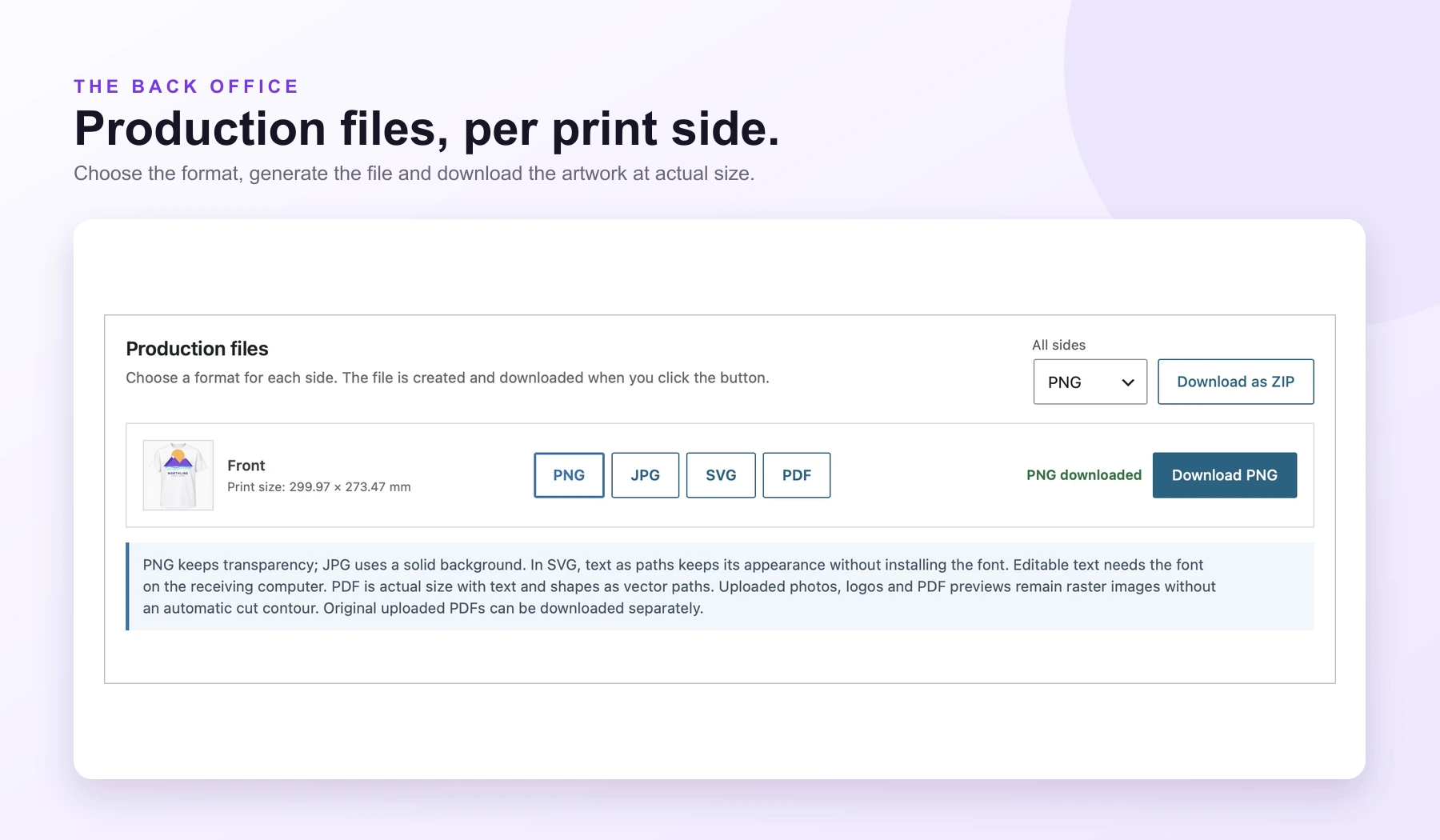
Free: Download PNG and JPG production files from the WooCommerce order. PrintGear (PRO): Adds SVG and PDF export, plus the ability to edit the design after checkout.
An easy-to-use designer in your store is essential. For you as a printer, a capable back office is just as important. PrintGear gives you print-ready files for every side, room to correct artwork after checkout, and the option to ask for approval when it matters.
Production files
The right file for the next step.
Click a side’s preview to see the complete design at a larger size. Then choose a format, create the file and download it. The displayed dimensions are the actual production dimensions.
Transparent and true to size.
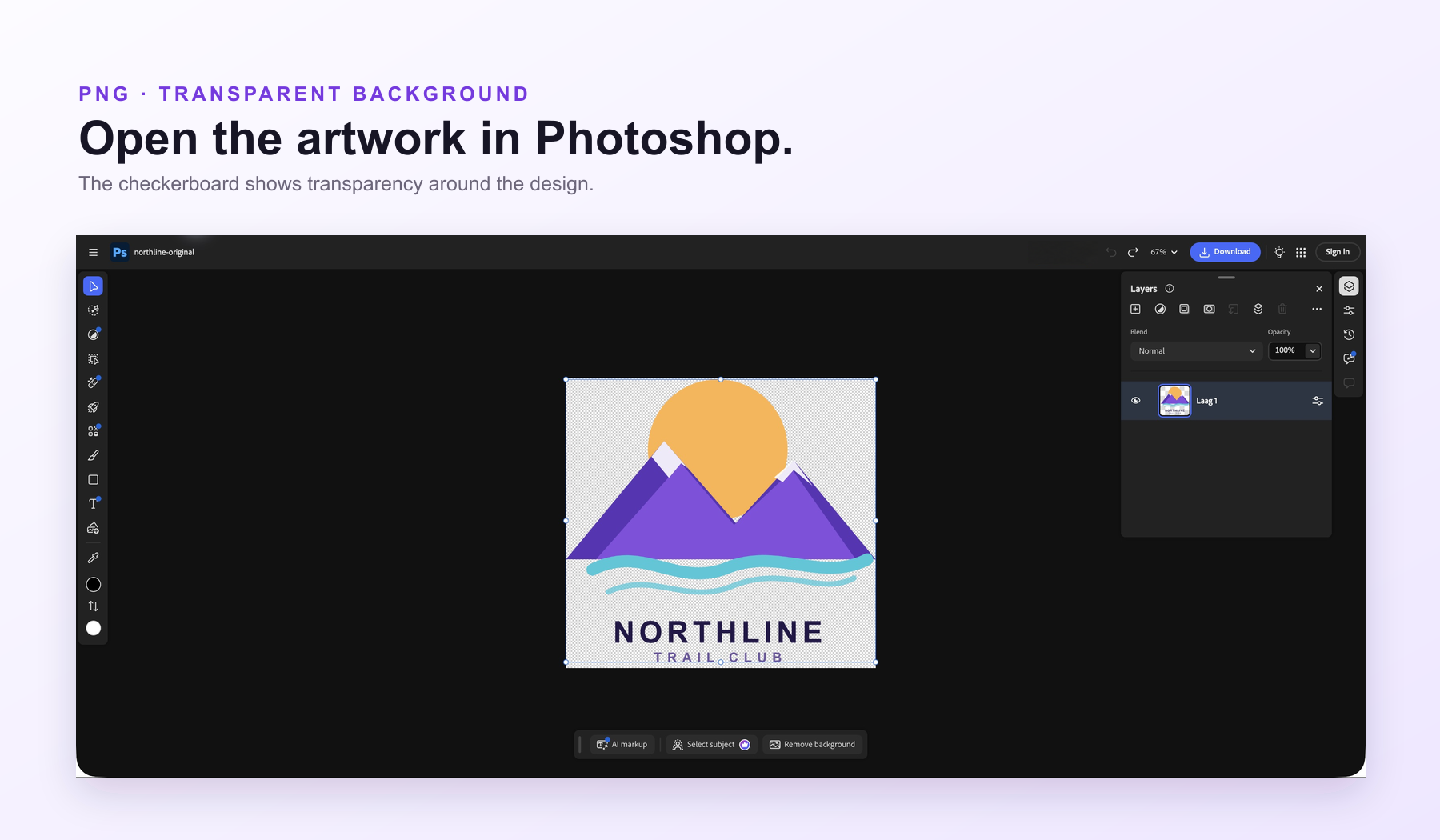
PNG is the straightforward choice for artwork that needs a transparent background. If the customer removed the image background in the designer, that transparency stays in the export.
The design is exported at the size the customer created: 1 cm in the design remains 1 cm in the production file. In Photoshop, the checkerboard shows the transparent area around the artwork.
Vector shapes you can inspect.
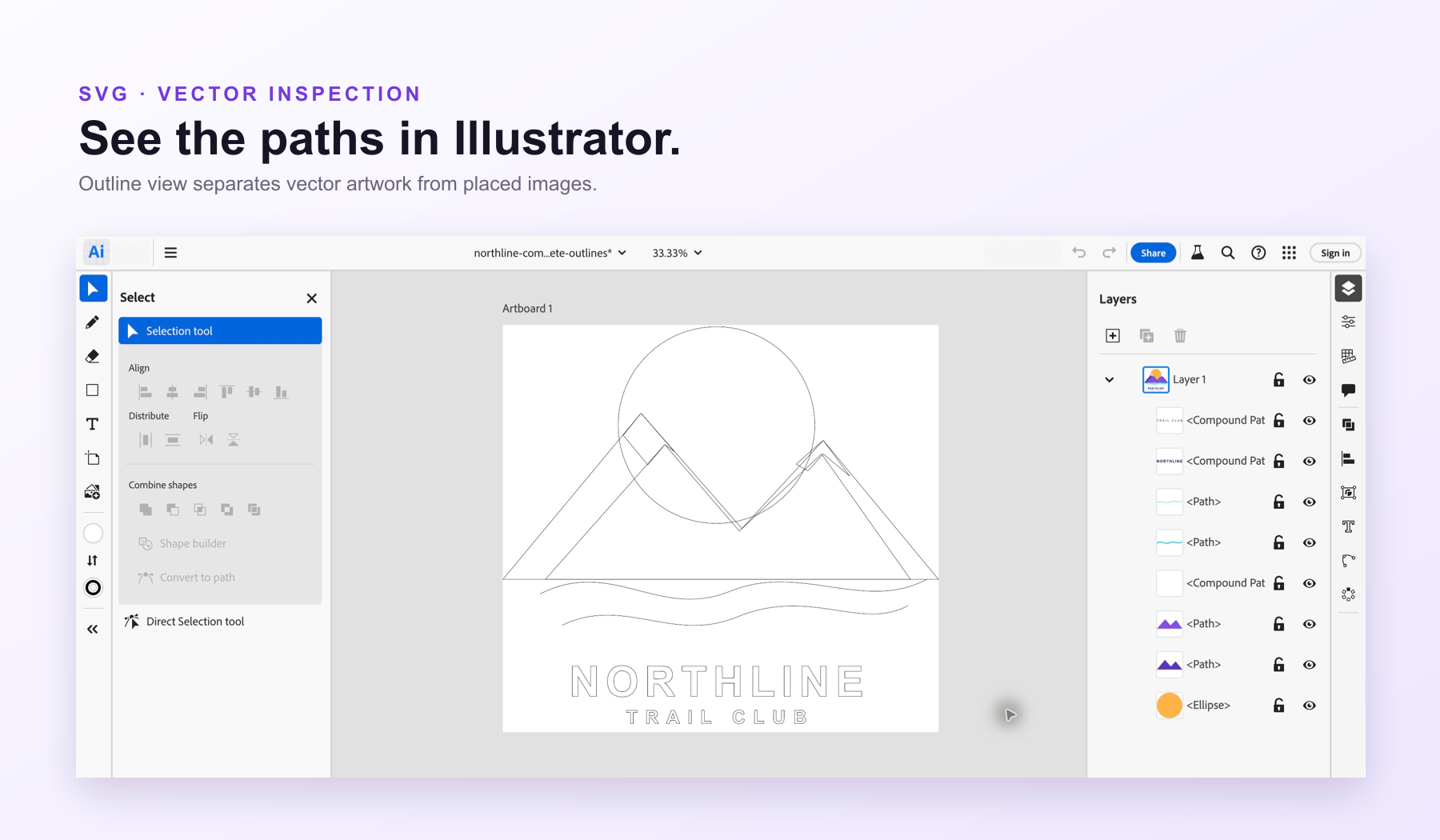
Shapes made in PrintGear stay vector paths in the SVG. Choose Text as paths for lettering that must look the same without installing a font. Choose Editable text if you need to change the words.
In Illustrator, switch to Outline view (⌘Y) to inspect the paths. Uploaded photos stay raster images and need their own cut contour if you want to cut around them.
A familiar production document.
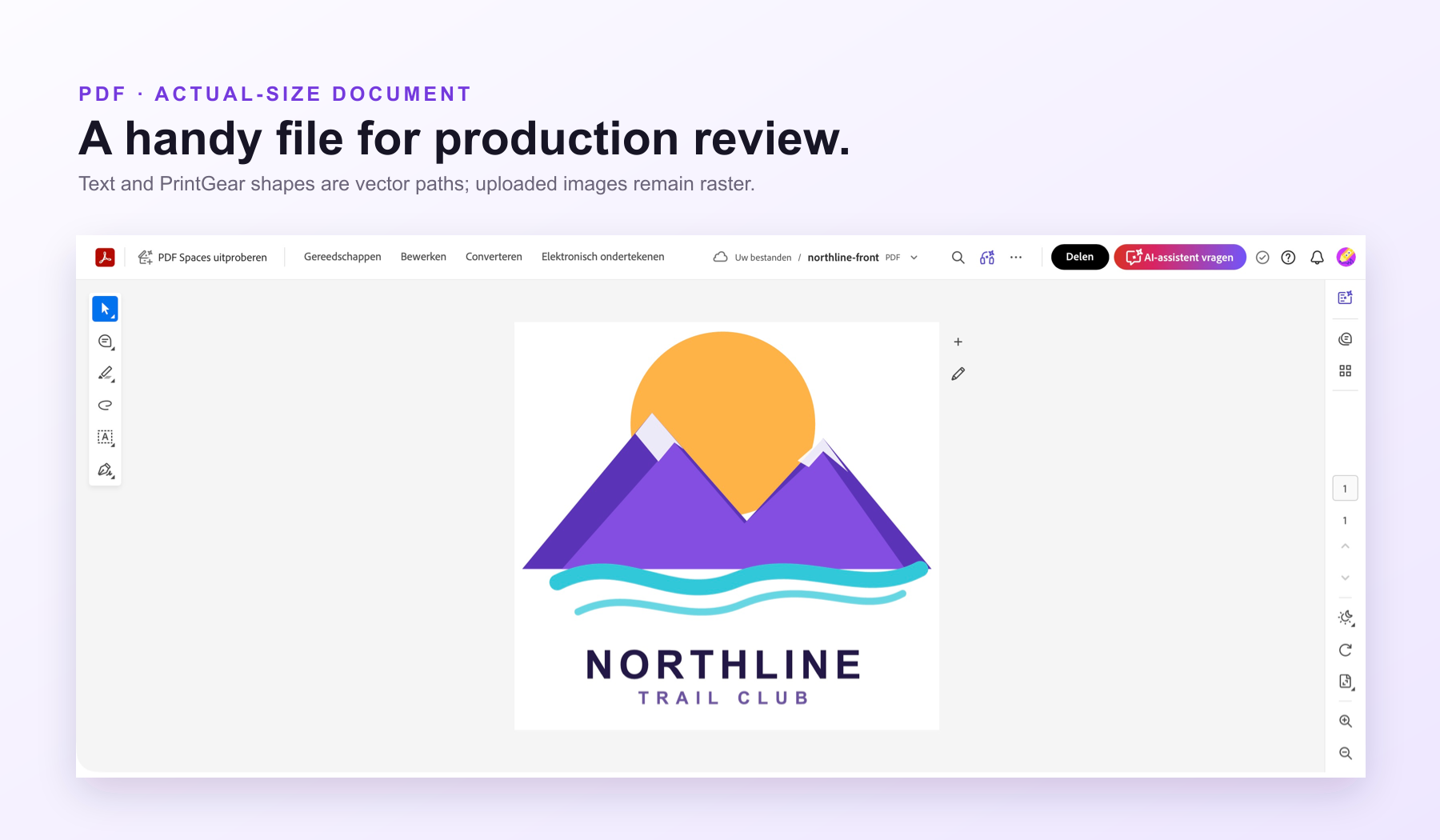
Create a PDF per print side at actual size. PrintGear text and shapes are vector paths in the file, while uploaded photos and other image content remain raster. It is a convenient format to review or hand over to a printer that asks for PDF.
If a customer uploaded a PDF as artwork, the original uploaded PDF can also be downloaded separately from the order.
After the order
The order is in. You can still perfect the design. (PRO)
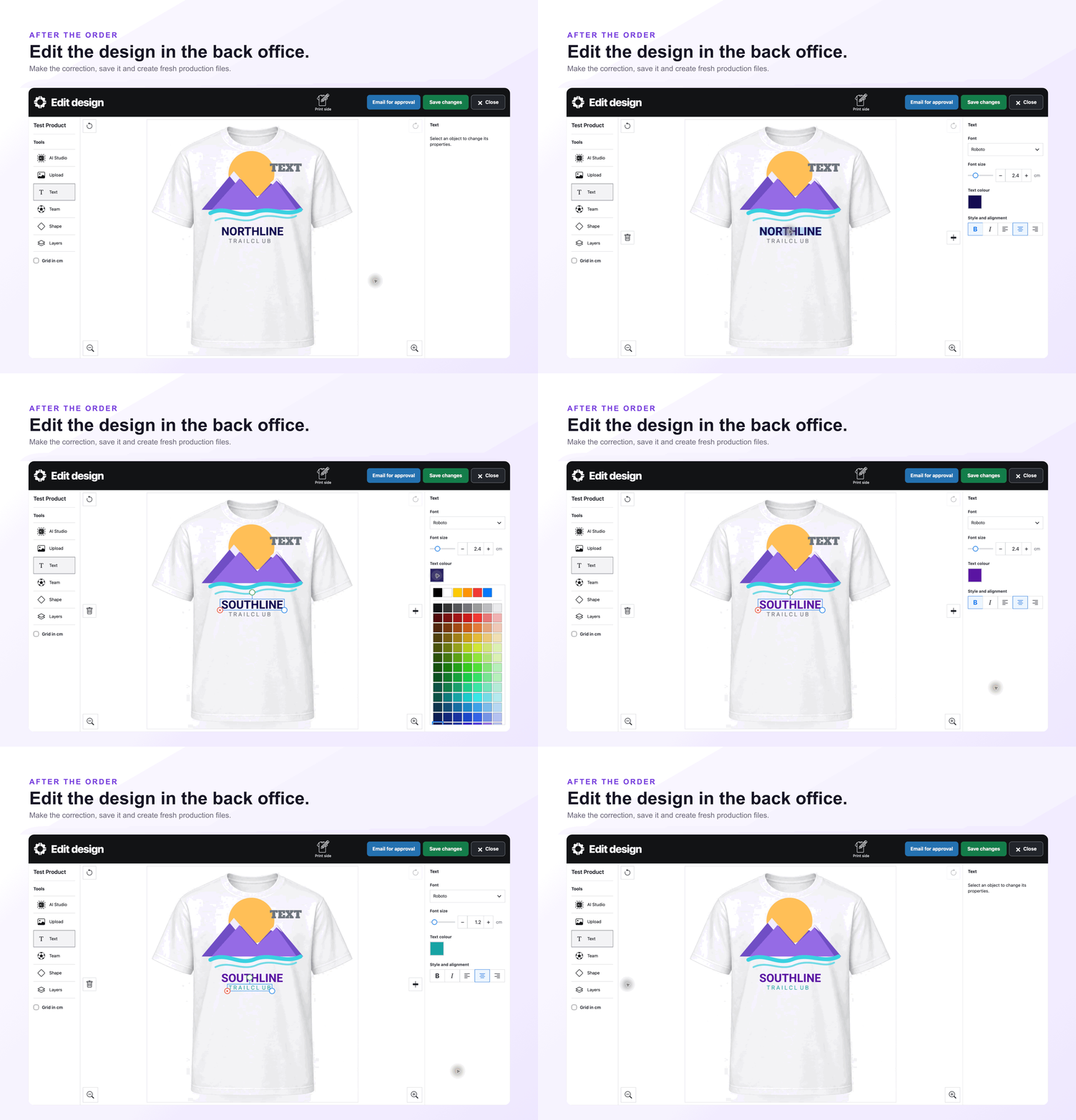
A typo, a missed image background or a requested change does not mean starting the order again. Open Edit design from the WooCommerce order, make the correction and save the new version before production.
Open the order
Find the customer’s design in the WooCommerce back office.
Edit design
Correct text or artwork, or remove an image background the customer missed.
Save changes
The new preview appears on the order. Generate fresh production files from the updated design.
Approval if needed
Send the current design by email when a change needs the customer’s go-ahead.
A second chance for the artwork
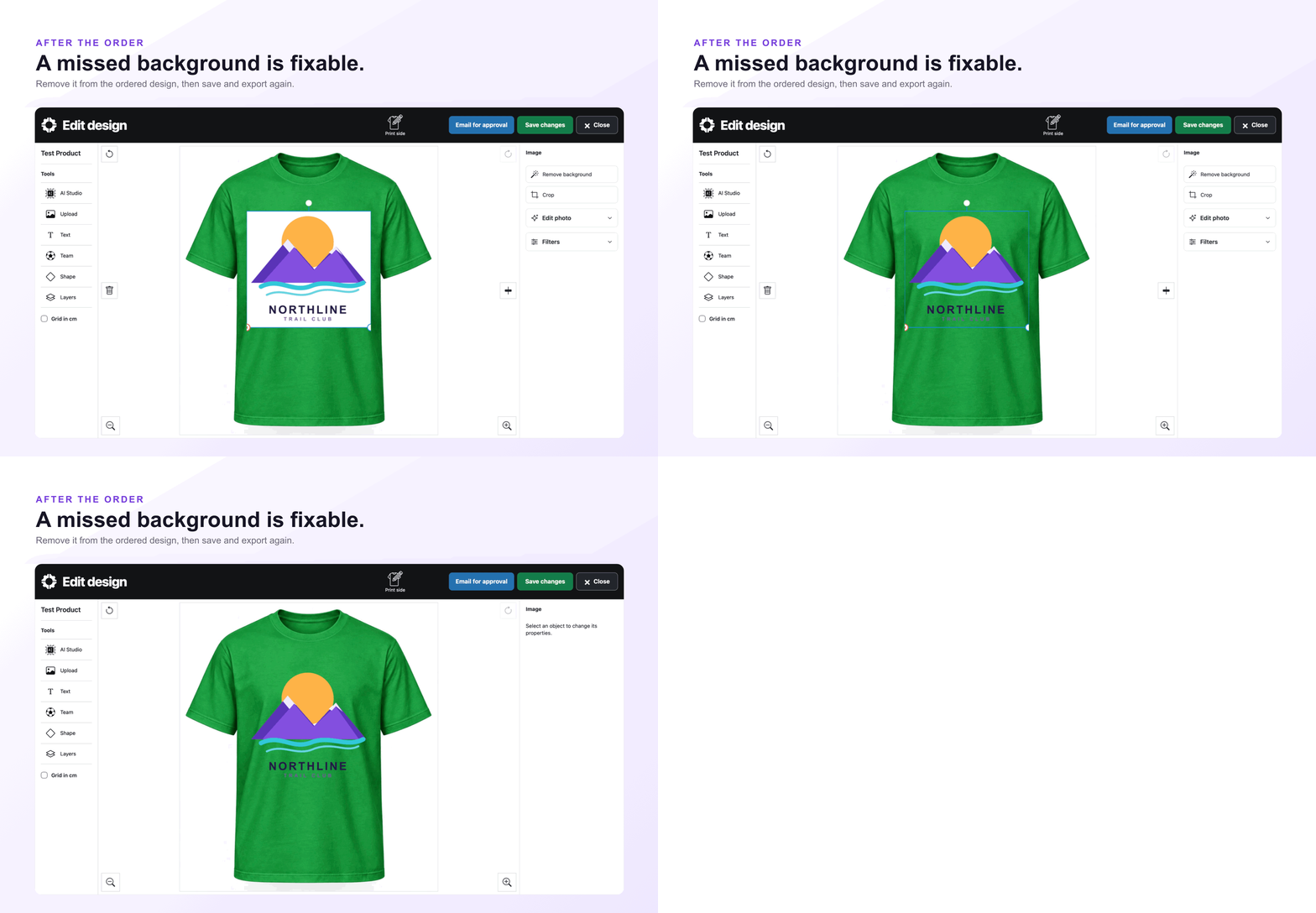
They missed “Remove background”? You can fix it.
If the customer uploaded an image with a background, select it in the order editor and use Remove background. Save the corrected design, then create a fresh transparent PNG or another production file. The new preview follows the correction.
Background Removal must be enabled for the shop.
When you want the customer’s go-ahead
Approval is there when you need it.
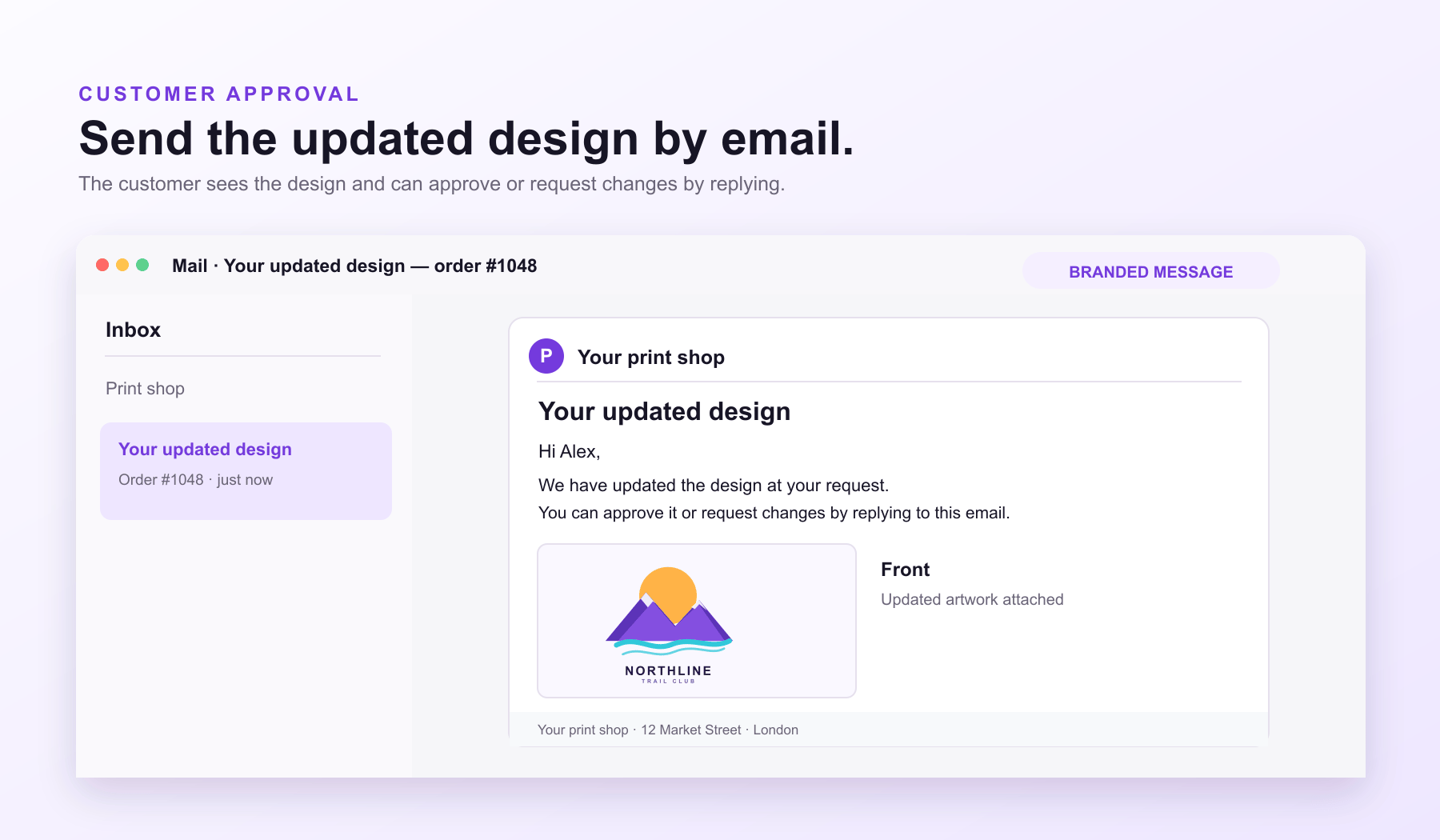
A straightforward spelling mistake can simply be corrected and saved. When a change needs the customer’s approval, choose Email for approval. PrintGear sends the current design to the order’s billing email address, using your shop’s name, logo and address and showing every design side.
The customer can approve the design or request another change by replying to the email.